StackyStack, the AI video clipper for podcasts and streams: Clip Smart Not Hard
Drop in a podcast, stream or any long video. StackyStack’s AI video clipper finds the best moments, makes them vertical and adds captions. You just pick your favorites.
See how it works- No editing experience needed
- Free plan, no card
- Windows, macOS & Linux
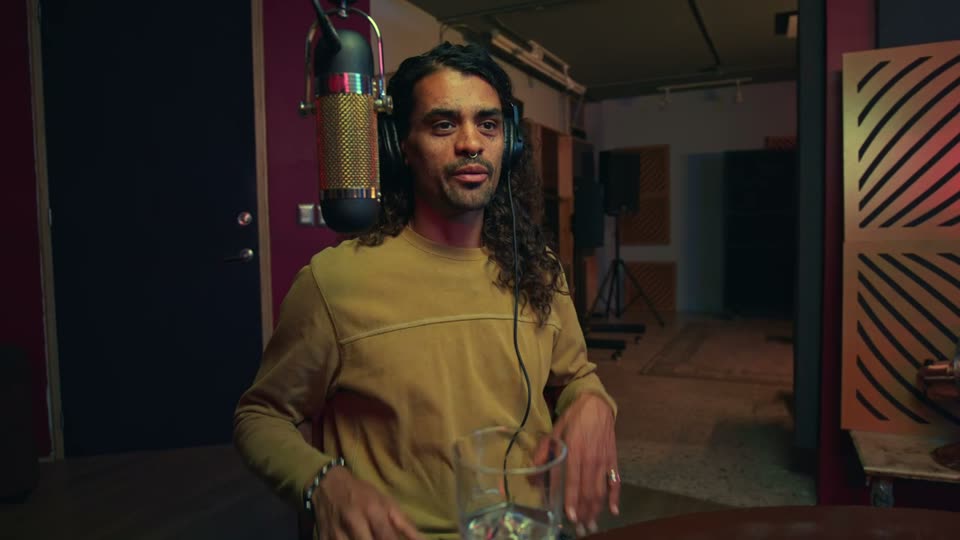
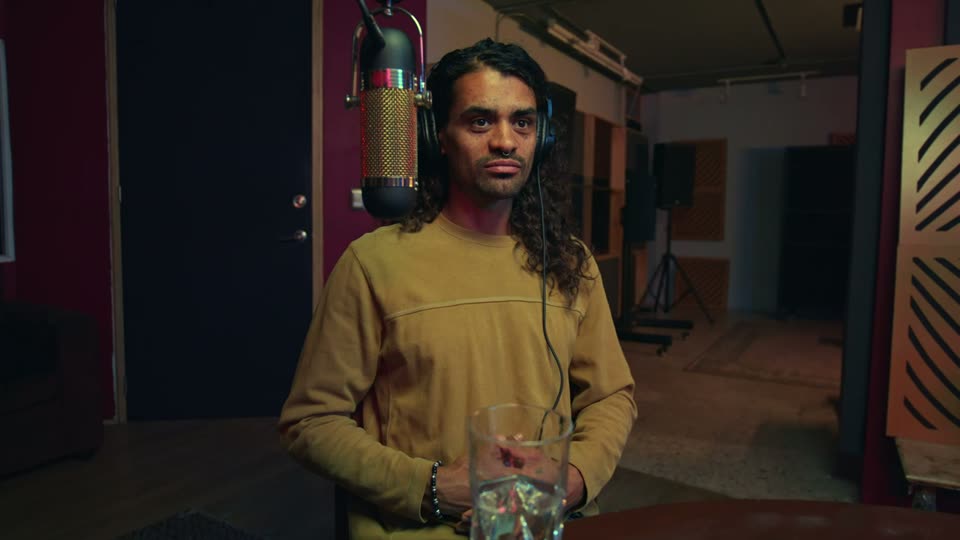
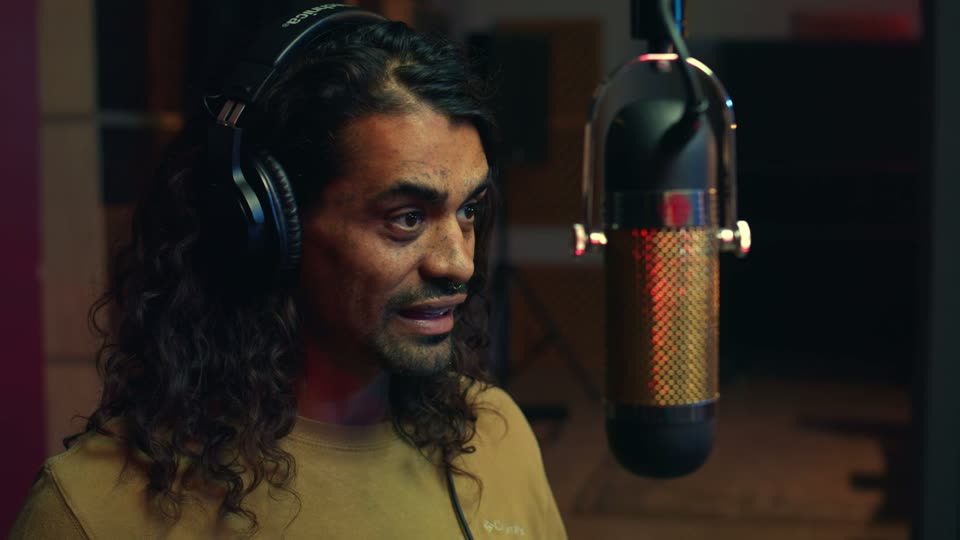
One long video in
A stack of shorts out
Turn long videos into shorts without learning to edit. The whole job happens in one desktop app, and it takes minutes instead of a day.
Drop it in
Drag in a recording, or paste a link from YouTube, Twitch and other video sites.
Pick your favorites
It scores every moment out of 10 and tells you why. Keep the ones you like.
Post it
Export vertical shorts for TikTok, YouTube Shorts and Reels, captions included.
Want to fine-tune? Trim, reframe, restyle the captions or type what you want changed. Every cut stays editable.
Every moment scored
The best ones first
StackyStack reads the whole recording, then ranks what is worth posting out of 10, with the reasons. You decide which ones make the cut.
Punchy moments with a strong opening hook.
Why this clip?
9.6/10
- Instant emotional hook
- Clean payoff
Suggested hook
“Nobody tells you this about launching until it’s too late…”
You get a short, ranked list: near-duplicates and weak moments are left out.
Shot wide
Posted tall
Auto reframe fills the frame and pans to keep a face in view: the most prominent one, whoever is speaking, or the person you pick. It runs on your computer.
Where are you posting?
Layouts go further: fit with a blurred fill, or place a shot in the top or bottom half. Keyframe the crop yourself whenever you want a different move.
Every word
right on the beat
Captions come from a fast cloud transcript of the sound, timed word by word. Pick a look, colour the words that matter, and keep them clear of each platform’s buttons.
Kept clear of each app’s buttons
Ten more in the app: Reveal, Comic, Marker, Arcade, Breaking, Cinema, Candy, Glitch, Rise, Depth. Any of them can be tuned: highlight, emphasis, font and position.
Fix a word, keep the timing
Correct what the transcript misheard. The word stays exactly where it was spoken.
It does the work
You make the calls
Type what you want and it edits, or take the timeline yourself: trim, split, add sounds and change the caption look. Every cut it makes stays editable.
One request, one finished short: a one-hour recording in, a 58-second vertical clip with captions out.
Like to be hands-on? A full timeline, caption styles, sounds, ready-made templates and an inspector are all there when you want them. Streaming? You can even clip a stream while it’s still live.
One moment
Six ways to post it
Pick a template, add your moments and press Generate. Rankings, hype clips, recaps and more, cut and captioned for you.
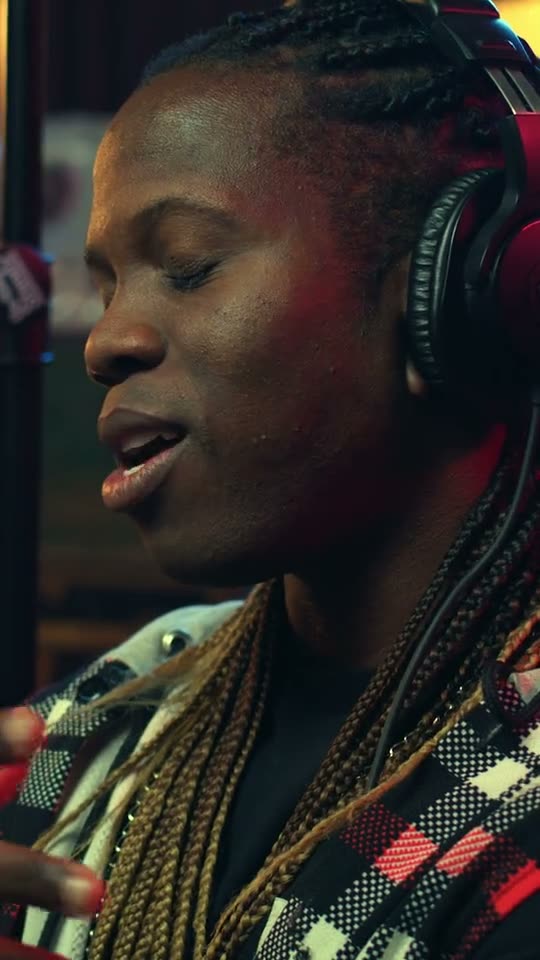
Template 1 of 6
Ranking
Counts your moments down as a numbered list, with a title that stays on screen.
Watch live.
Clip the moment.
Paste a live link from YouTube, Twitch, TikTok or Facebook. Watch up to four streams at once, rewind anything, and save the last few minutes in one tap. Or let StackyStack clip on a schedule and find the best moments for you.
Auto-clip every 30 min· repeat until the stream ends · then Find moments
Clips 2
- Auto-clip · 30 minMorning show · 1:10:009.1
- Last 2 minMorning show · 1:11:31
Every clip lands in your project, ready to frame, caption and export while the stream is still running.
- Up to four streams at onceEach one gets a tab. Only the one you watch plays; the others keep recording.
- Rewind, then clipGo back, find the moment and keep the last 1, 2, 3 or 5 minutes ending right there.
- Auto-clip on a scheduleEvery 30 minutes up to every 4 hours, until the stream ends. Find moments ranks each clip for you.
Choose 1080p at 60 fps, or a lighter 720p at 60 fps that also sets the size clips are cut at. When the stream ends, you can still rewind and clip.
Live watching is on the Creator, Pro and Studio plans.
And the rest
of the toolbox
Use them when you need them. Each one has its own page, and a quick demo you can play right here.
Clip it while it’s live
Record a stream and save the last few minutes in one click.
Story shorts with a narrator
Write a script, record the voice, and the footage cuts on every line.
Cut the ums and pauses
Ums, uhs and dead air, found and cut.
Edit by editing the text
The video as a transcript. Cut a word and the clip cuts with it.
Hundreds of sounds
Hundreds of SFX, music and meme sounds. Hear one, drop it on the beat.
Start from a link
Paste a video link. No downloading it first.
Seven vibes
Make the app quiet, loud or sparkly. Every shortcut stays put.
Let your AI assistant drive
An MCP server on your computer. Claude and other assistants can find, edit and export for you.
Your video stays
on your machine
The StackyStack app edits and exports on your computer, and sends only the sound when it needs a transcript. Studio, the browser version, sends only a video’s sound to find its moments, then frames and cuts the clips on your computer.
No video uploads, no waiting
In the app, open a recording and start. There is no progress bar to sit through first.
Long recordings welcome
Multi-hour podcasts and streams stay where they are, on your drive.
Your footage stays private
In the app, your picture never leaves your computer. Only the sound is sent, to transcribe it, and it is then deleted.
Simple pricing
Start free. Upgrade when you grow
Full desktop editing and export are always free. Upgrade when you want more automated clip discovery hours and premium styling
Prices in USD. Cancel anytime with one click. No hidden fees or lock-in
On the house
Included on every plan, even Free
Editor
- Multi-track timeline with keyframes and easing
- 8 cinematic transitions, from whip to blur dissolve
- 13 pro effects: zoom, punch-in, shake, grain, vignette and more
- 6 one-click looks: Cinematic, Punchy, Noir and more
- AI background removal and green screen
- 6 Smart Edit templates: Ranking, Hype clip, Stream recap and more
Captions
- Auto-captions straight from your transcript
- Word highlighting and speaker colours
- Auto-censor for words you never want on screen
- 8 creator fonts and 7 text presets
- Safe-zone guides for every platform
Export
- Unlimited renders on your own machine
- Zero watermark, on every export
- Up to 60 fps in H.264 or H.265
- Vertical, landscape, square or custom up to 8192 px
- Export the full cut, an in-to-out range or just a selection
Extras
- Built-in royalty-free sound and music library
- Let your AI assistant drive the editor (MCP)
- Start a project from a link
- Local-first: your video files stay on your machine
- Version history and crash recovery
- 7 Vibes themes and 14 interface languages
Questions?
Plain answers.
Do I need editing experience?
No. Drop in a video and StackyStack finds the best moments, makes them vertical and adds captions. You pick the ones you like and export. If you want to fine-tune, every cut stays editable.
Is StackyStack free?
Yes. The Free plan costs nothing and needs no card. Full desktop editing and export are always free, and it includes 60 minutes of AI moment finding a month. Paid plans add more automated clip discovery hours and premium styling.
Which computers does it run on?
The desktop app is for Windows (Windows 10 or 11, 64-bit), macOS (macOS 13 Ventura or later · Apple silicon & Intel), Linux (AppImage · x64, glibc 2.31+).
Can I try it without installing anything?
Yes. Quick Studio runs in your browser: sign in with Google, paste a YouTube link or upload a video, and it finds the moments, then frames and cuts the clips on your computer. It uses the same monthly minutes as the app.
Can I clip a live stream?
Yes, on the Creator, Pro and Studio plans. Paste a live link from YouTube, Twitch, TikTok or Facebook, watch up to four streams at once, and save the last 1, 2, 3 or 5 minutes in one click, or let auto-clip do it on a schedule.
Does my video get uploaded?
Not from the app. It edits and exports on your computer and sends only the sound when it needs a transcript, which is then deleted. Studio, the browser version, sends only a video’s sound to find its moments.
Your next short is already in your footage
Windows · macOS · Linux · Free plan, no card